VeritaWeather
A fast, private, no-tracking weather app that shows current conditions, air quality, an hourly strip, and a 7-day forecast for any city or postal code.
How to access the application
1 · What VeritaWeather is
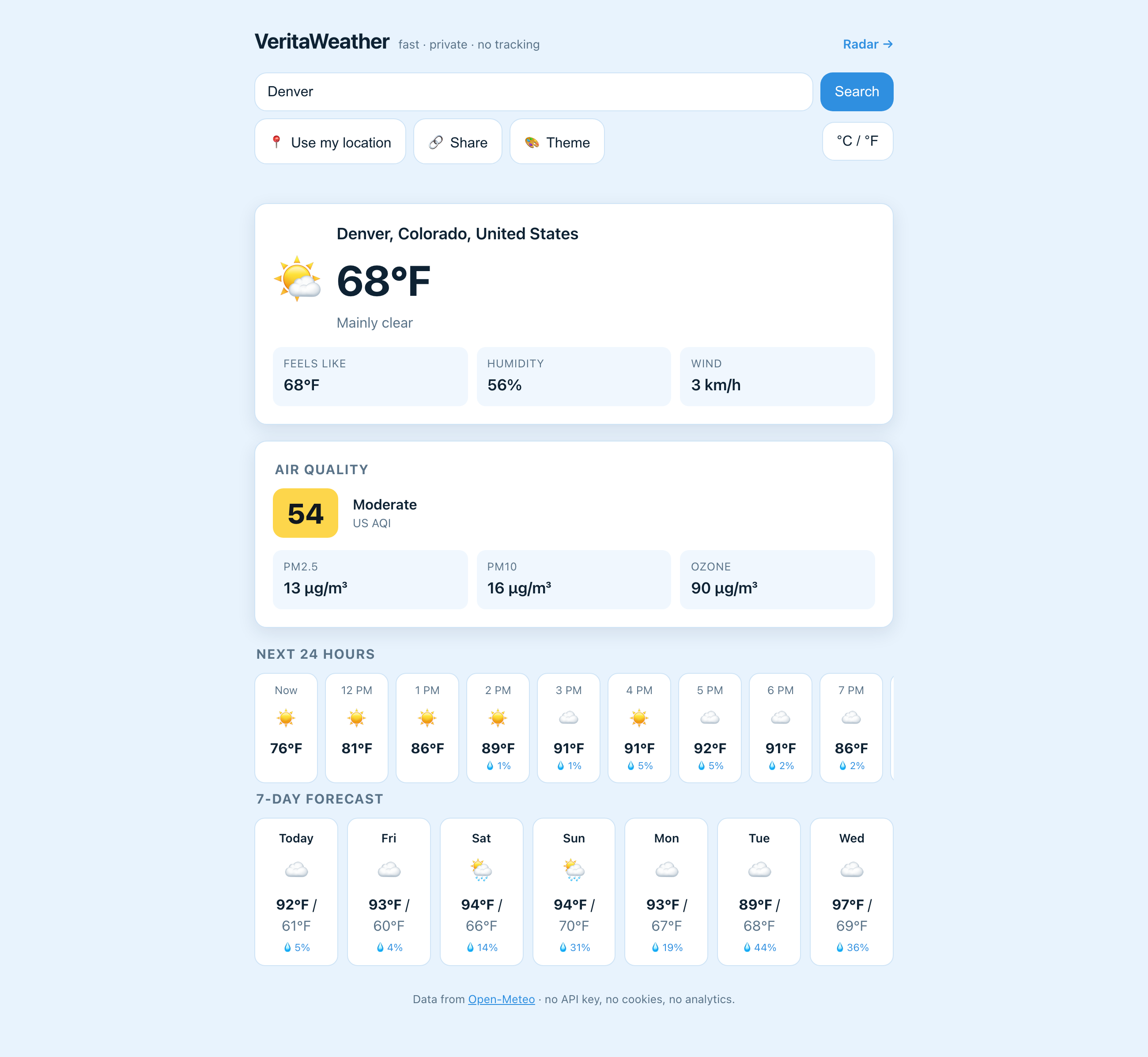
VeritaWeather is a simple, single-page weather website. You type a place, and it shows you the weather right now, the air quality, an hour-by-hour outlook for the rest of the day, and a seven-day forecast. There is nothing to install and no account to create — just open the page and start using it.
The weather data comes from Open-Meteo, a free public weather service. VeritaWeather adds no cookies, no analytics, and no tracking. The only things it remembers about you are your temperature unit and your chosen colour theme, and those are stored privately in your own browser.
- Current conditions — a large weather icon, temperature, "feels like", humidity, and wind.
- Air quality — the US Air Quality Index plus common pollutants (PM2.5, PM10, ozone).
- Next 24 hours — a scrollable strip of hour-by-hour icons, temperatures, and chance of rain.
- 7-day forecast — daily high/low and rain chance.
- Themes — seven weather-inspired colour schemes, light and dark, that follow your device until you choose one.
- Share links & deep links — send anyone a link that opens the same location, or bookmark one for one-click access.
- Radar — a top-corner link to the companion radar map, centred on the place you are viewing.
2 · Quick start
You can be looking at a forecast within seconds. There is no sign-up, no email, and no password.
City or ZIP (e.g. Denver, 80202, Tokyo)) and type a city name or postal code — for example Denver, 80202, or Tokyo.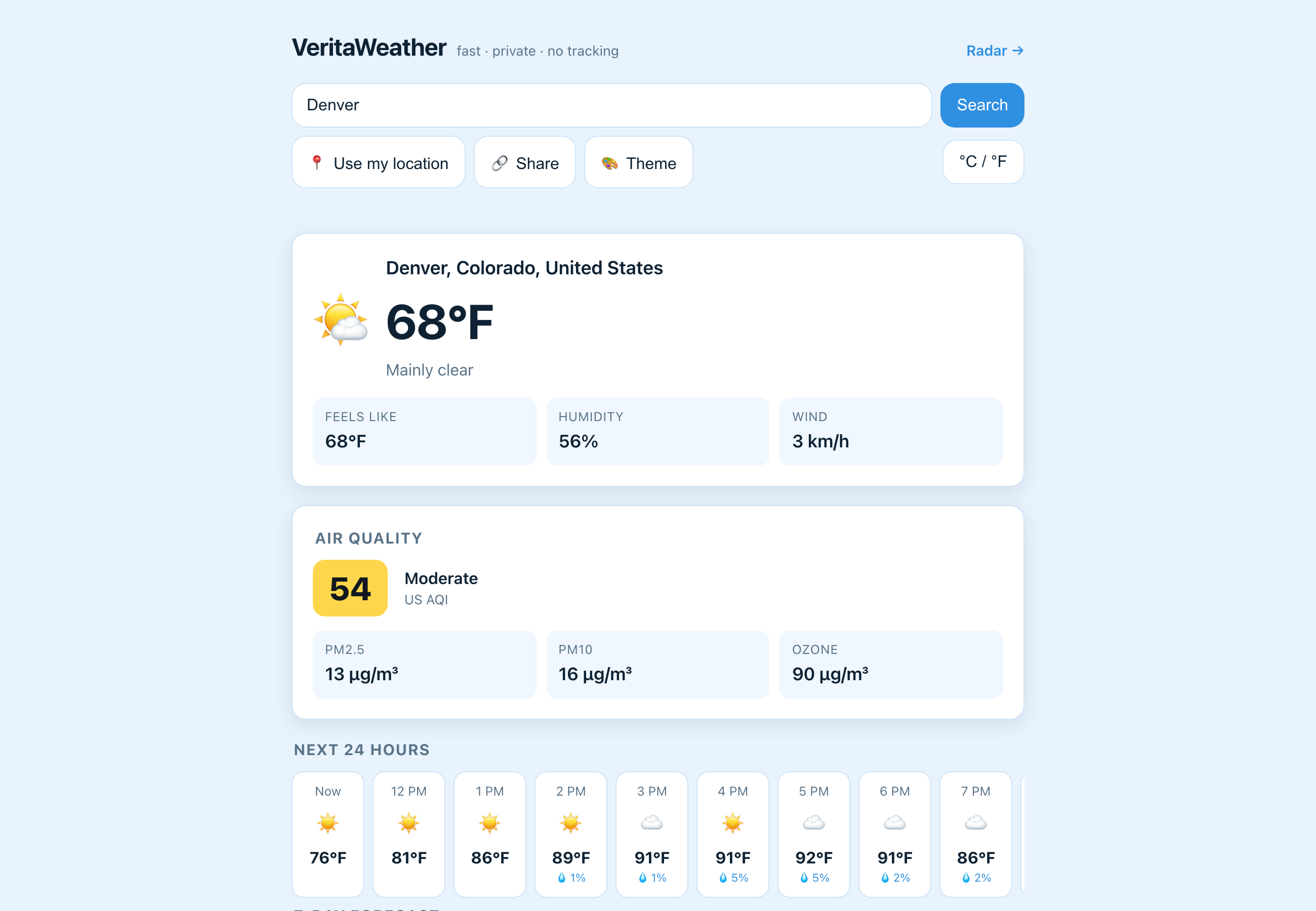
3 · A tour of the screen
Everything lives on one scrolling page. From top to bottom you will find these areas.
The header
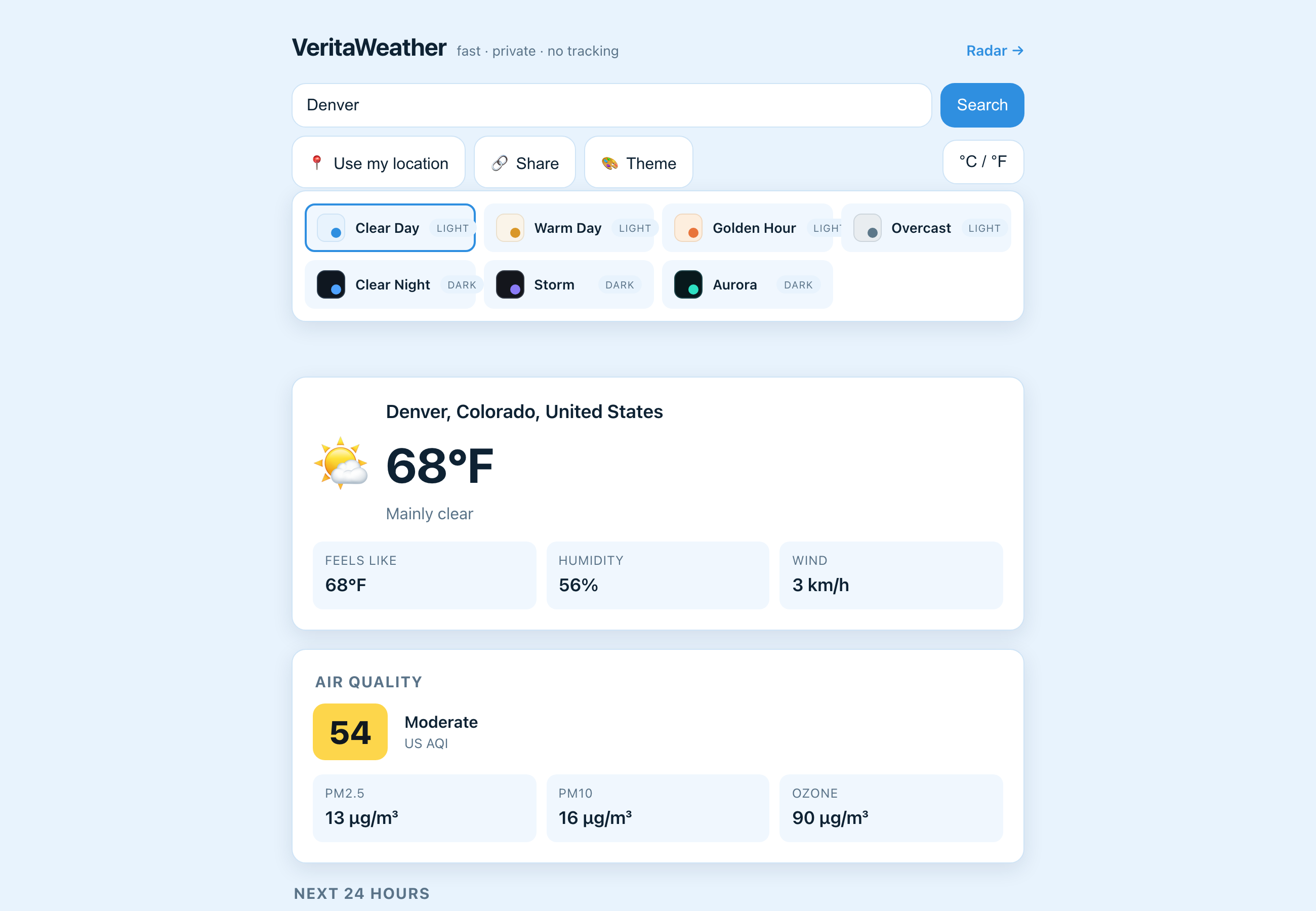
At the very top is the VeritaWeather title with the small tagline "fast · private · no tracking". On the right is a Radar → link that opens the separate radar map for whatever place you are currently viewing.
The search bar
A single text box — placeholder City or ZIP (e.g. Denver, 80202, Tokyo) — where you type a city or postal code, with a blue Search button beside it. Submitting the form (Enter or the button) starts the lookup.
The button row
Just under the search bar is a row of four secondary buttons, in this order:
- 📍 Use my location — asks your browser for your location and loads the weather there.
- 🔗 Share — copies a link to the place you are viewing.
- 🎨 Theme — opens the colour-scheme chooser panel just below the row.
- °C / °F — switches between Celsius and Fahrenheit (this button sits at the right end of the row).
The status line
A thin line of text below the buttons (and below the theme panel) shows short messages such as Finding "Denver"…, Loading forecast…, Link copied to clipboard ✓, or an error in red if something goes wrong. When it is empty it simply reserves a little space.
The weather cards
Below the status line, the results appear as a stack of cards and sections: Current conditions, Air quality, Next 24 hours, and the 7-day forecast. Each of these is hidden until it has data, so on first paint (before a place loads) you see only the header, search bar, buttons, and status line.
The footer
At the bottom, a small note credits Open-Meteo as the data source (as a link that opens in a new tab) and reminds you there is "no API key, no cookies, no analytics."
Accessibility
The controls carry the usual accessibility labels: the search box is labelled "City or postal code", the status line announces changes politely to screen readers, the theme button reports whether its menu is open, and the °C / °F button reports its pressed state. The page uses standard keyboard focus, so you can Tab between the search box and buttons and activate them with Enter or Space.
4 · Searching for a place
The search box understands three kinds of input: city names, US ZIP codes, and international postal codes. VeritaWeather looks at what you typed and automatically routes it to the right lookup — a postal-code service or the city-name geocoder.
Searching by city name
Tokyo, Paris, or San Diego.VeritaWeather finds the best matching place and shows its full name — the city with its region and country, for example "Denver, Colorado, United States" — above the temperature so you can confirm it picked the right one.
Springfield, Illinois — to steer the match. Only the single best match is used.Searching by US ZIP code
Type a five-digit US ZIP code such as 80202 and press Search. A ZIP+4 form like 80202-1234 also works; only the first five digits are used.
Searching by international postal code
For postal codes outside the US, add a comma and the two-letter country code so VeritaWeather knows which country to look in.
| You want… | Type this |
|---|---|
| A US ZIP | 80202 |
| A UK postal district | SW1A, gb |
| A French postal code | 75008, fr |
| A German postal code | 10115, de |
, cc country suffix for places outside the US.What happens while it searches
The status line first shows Finding "…" with your query in quotes, then Loading forecast… while the data downloads. The Search and 📍 Use my location buttons are briefly disabled (and show a progress cursor) while it works.
If nothing matches, you will see a red message and can simply try a different spelling:
- For a city that could not be found: No match for "…".
- For a postal code that could not be found: No match for postal code "…" (CC), where CC is the country code.
5 · Using your current location
The 📍 Use my location button loads the weather for wherever you are, without typing anything.
Location lookups here are approximate on purpose (they do not force high-accuracy GPS), which is faster and gentler on battery. The request times out after about ten seconds, and a recent position may be reused for up to ten minutes.
6 · Current conditions
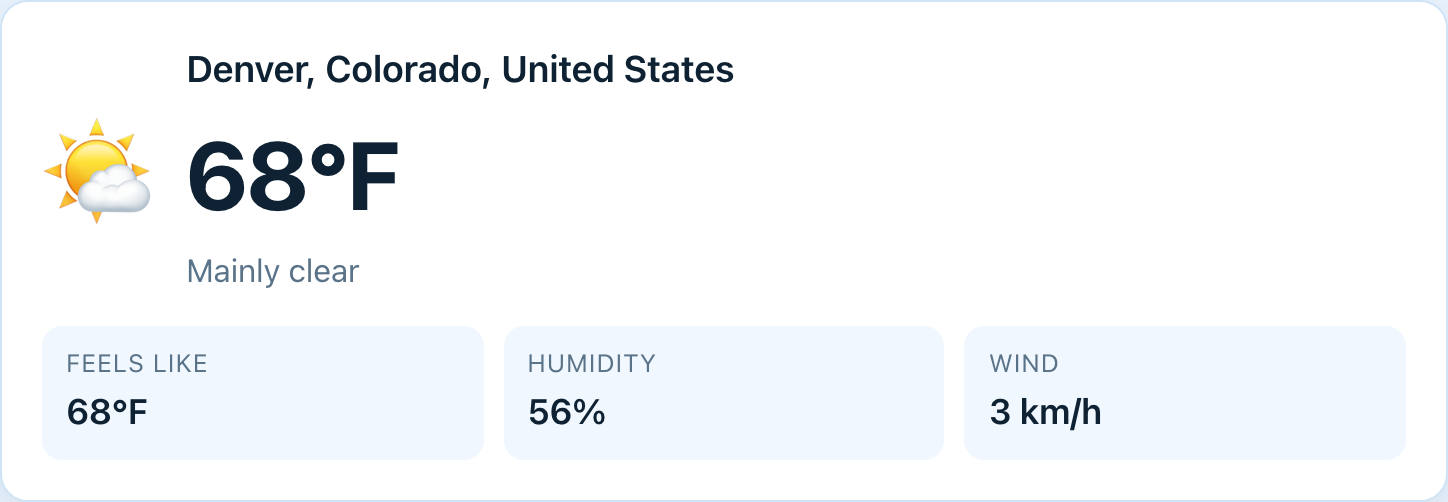
The first card is the big "right now" summary. It shows:
- A large weather icon (☀️, ⛅, 🌧️, ⛈️, and so on).
- The place name that was matched.
- The current temperature in your chosen unit.
- A short description such as "Partly cloudy" or "Light rain".
Below that are three stat tiles:
| Stat | What it means |
|---|---|
| Feels like | The "apparent" temperature, factoring in wind and humidity — how warm or cold it actually feels. |
| Humidity | Relative humidity as a percentage. |
| Wind | Wind speed, in the local units returned by the weather service (for example km/h). |
Weather icons cover a full range of conditions — clear and mainly clear, partly cloudy and overcast, fog and rime fog, drizzle (including freezing drizzle), rain (including freezing rain), snow and snow grains, rain and snow showers, and thunderstorms (with or without hail). If a weather code is ever unrecognised, a "❓ Unknown" icon appears in its place.
7 · Air quality
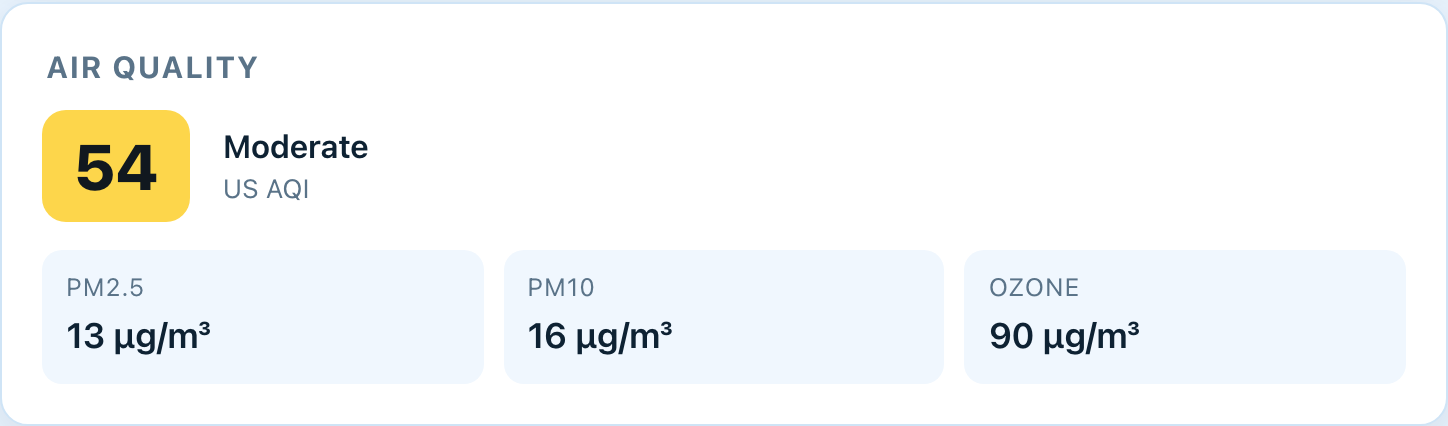
When air-quality data is available for the location, a second card shows the US Air Quality Index (AQI). The card is titled "Air quality".
A large coloured badge shows the AQI number, with a word describing how healthy the air is and the small label "US AQI" beneath it. The colour and label follow the US EPA scale:
| AQI | Category |
|---|---|
| 0–50 | Good |
| 51–100 | Moderate |
| 101–150 | Unhealthy (sensitive) |
| 151–200 | Unhealthy |
| 201–300 | Very unhealthy |
| 301+ | Hazardous |
Below the badge, individual pollutant tiles show the current readings for PM2.5, PM10, and Ozone (typically in µg/m³). A pollutant with no reading is simply left out.
8 · Next 24 hours
The "Next 24 hours" section is a horizontal strip of small tiles, one per hour. It begins at the current hour in the location's local time and runs forward for up to 24 hours.
Each tile shows:
- The time (the first tile is labelled "Now"; the rest show the hour, e.g. "3 PM").
- A small weather icon for that hour.
- The temperature in your chosen unit.
- A rain chance such as
💧40%when there is any chance of precipitation (tiles with no chance show nothing here).

9 · 7-day forecast
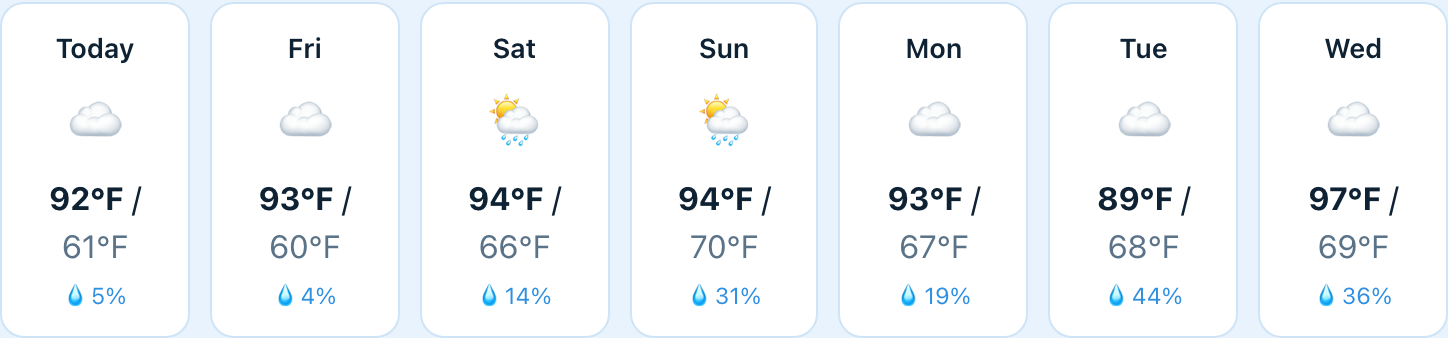
The final section is a grid of seven day cards. The first is labelled Today; the rest show the weekday abbreviation (Mon, Tue, and so on).
Each day card shows:
- A weather icon summarising the day.
- The high / low temperatures, with the low shown in a softer colour.
- A rain chance (for example
💧30%) when precipitation is expected; days with no chance leave this blank.
All temperatures across the whole page — current, hourly, and daily — use whichever unit you have selected.
10 · Switching °C / °F
The °C / °F button toggles every temperature on the page between Celsius and Fahrenheit.
The app opens in Fahrenheit by default. Once you change it, your preference is saved in your browser and used every time you return — an explicit choice always wins over the default.
11 · Themes & appearance
VeritaWeather ships with seven weather-inspired colour schemes — four light, three dark.
The current theme is marked with a highlighted (accent-coloured) border. Each card shows a colour swatch with an accent dot, the theme's name, and a small badge saying whether it is a light or dark mode.
| Theme | Mode |
|---|---|
| Clear Day | Light |
| Warm Day | Light |
| Golden Hour | Light |
| Overcast | Light |
| Clear Night | Dark |
| Storm | Dark |
| Aurora | Dark |
Until you pick a theme yourself, VeritaWeather follows your device's system setting: it opens in Clear Night if your device is in dark mode, or Clear Day if it is in light mode. Once you choose a theme, that choice is remembered and used on every visit.
13 · Radar
The Radar → link in the top-right corner of the header opens VeritaWeather's separate radar map at radar.veritaweather.com.
The link keeps itself pointed at whatever location you are currently viewing: once a place loads, the same location parameters (ZIP, city text, or coordinates) are appended to the radar address, so it opens the map centred on the same spot. Load a place first, then click Radar → to see it on the map.
14 · Saving, offline & installing
VeritaWeather is a live weather app: it fetches fresh data from the internet each time you load a place, so an internet connection is required to see the forecast.
What is saved
Two small preferences are stored privately in your browser:
- Your temperature unit (Celsius or Fahrenheit).
- Your colour theme.
These stay on your device and are re-applied automatically each visit. There is no account, so there is nothing to back up or restore in the cloud.
Keeping favourite places
Because VeritaWeather has no built-in favourites list, the best way to "save" a location is to bookmark its share link (see the Sharing & deep links section). A bookmark to veritaweather.com/?q=Tokyo, for example, reopens Tokyo instantly.
Adding it to your home screen
On a phone or tablet you can add VeritaWeather to your home screen so it opens like an app:
15 · Privacy & your data
Privacy is central to VeritaWeather. It has no accounts, no cookies, no analytics, and no tracking.
- What is stored on your device: only your temperature unit and colour theme, kept in your browser's local storage. Nothing else.
- What is sent over the internet: when you look up a place, the location (a city name, postal code, or coordinates) is sent to the public weather and geocoding services (Open-Meteo for the forecast and air quality, and a keyless postal-code lookup) so they can return the data. That is the normal cost of getting weather data.
- Your location: the "Use my location" feature only runs when you click it and grant permission. Your position is used to fetch the forecast and is not saved by VeritaWeather.
- No API keys, no cookies, no analytics, as stated in the app's own footer.
16 · Troubleshooting & FAQ
Common issues
| Problem | What to do |
|---|---|
| "No match for …" when searching | Check the spelling. For a city, add the region or country (e.g. Springfield, Illinois). |
| "No match for postal code …" | Check the digits. For a non-US postal code, add the two-letter country code (e.g. 75008, fr). US ZIPs need no suffix. |
| "Location denied or unavailable (…)" | You declined the location prompt or the browser could not find a position. Allow location access in your browser's site settings, or just use the search box. |
| "Geolocation not supported in this browser" | Your browser has no location feature. Use the search box to type a place instead. |
| "Could not load weather: …" | Usually a temporary network hiccup or the weather service being briefly unavailable. Wait a moment and search again. |
| "Couldn't open …" then London appears | A deep link (from a bookmark or shared URL) could not be resolved, so the app fell back to London. Re-check the ZIP or city in the link. |
| The air-quality card is missing | Air-quality data is not available for every location. This is normal; the rest of the forecast still works. |
| Temperatures look wrong | Check the °C / °F button — you may be viewing the other unit. Click it to switch. |
| Share said the link was not copied | Your browser blocked clipboard access. Copy the link from the pop-up or the status line manually. |
Frequently asked questions
Do I need an account?
No. VeritaWeather has no sign-up and no login. Just open the page.
Is it free?
Yes. It uses the free Open-Meteo weather service and requires no API key from you.
Why does it show London the first time?
London is the default example location when you arrive with no place chosen (and the fallback if a deep link can't be resolved). Search for your own city and, once you pick a unit or theme, your preferences are remembered afterwards.
How accurate is "Feels like"?
It is the apparent temperature from the weather service, which accounts for wind and humidity — a better guide to how the air will feel than the plain temperature.
Can I see more than seven days?
No. The forecast covers the current day plus the next six.
Does it work on my phone?
Yes. The layout adapts to phones, tablets, and computers, and you can add it to your home screen for quick access.
Where does the data come from?
All weather and air-quality data comes from Open-Meteo. Postal-code lookups use a keyless public service. VeritaWeather itself stores nothing about you beyond your unit and theme.